
Getting started with the Prismal PFX app
A quick path from your first connection to a lighting setup you can make your own.
Before you begin
Download our app on either the Apple App Store or the Google Play Store:


This guide is based off of our Standard Underglow Kit . Some features may be missing or look different based on the connected device and kit level.
Quick Links
Jump around to sections of this guide!
App Screens
The Prismal PFX App provides many settings and animation customizations; each screen is designed to help you achieve the most out of your Prismal Controller. Here is a summary of each screen before we dive in:
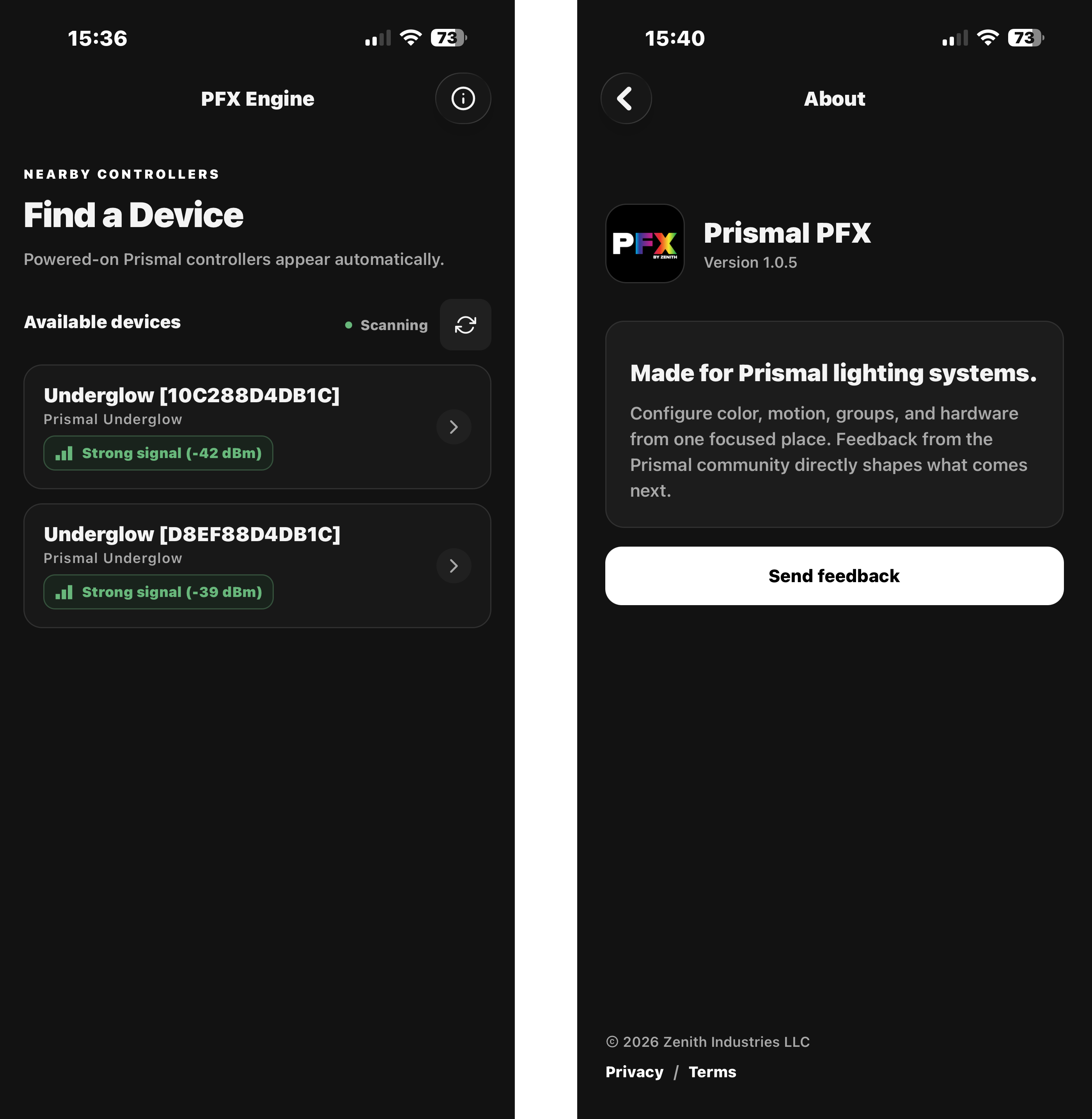
Scan Screen:
When booting up the app you will see all the compatible devices listed here. Simply tap the device you wish to connect to.
In the top right you will also see an 'i' button; this brings you to the app info and feedback page. We value community feedback. Please send us feedback for anything Prismal related!
Color Screen:
The color screen lets you set a solid color effect. You can enter a direct Hex Code, use a preset color, or fine tune a color with Hue, Saturation, and Brightness sliders! Jump to details
Build FX Screen:
The Build FX screen allows you to fully customize your own animation! Checkout our in-depth guide to building an animation here. You will, be able to add up to 4 layers using 8 animation types and blend them together using 7 blend modes. Jump to details
Presets Screen:
The Presets screen features over 1100 pre built animations to quickly light up the road. Here you will find previews of each preset grouped by color and animation type. Any imported presets and saved custom animations will also be found here. Jump to details
Group Screen:
The Group Screen allows you to connect multiple compatible Prismal Controllers and sync the animations either as one continuous strip or to play at the same time. This screen will allow you to setup a group, find a group and manage a group. Jump to details
Settings Screen:
The Settings screen lets you configure many controller settings. Most notably the controller name, a password, LED count, LED ordering, and LED correction settings. Jump to details.
If you need help configuring your LEDs regarding mismatched colors or other issues please see our guide to LED settings here.
Solid Colors
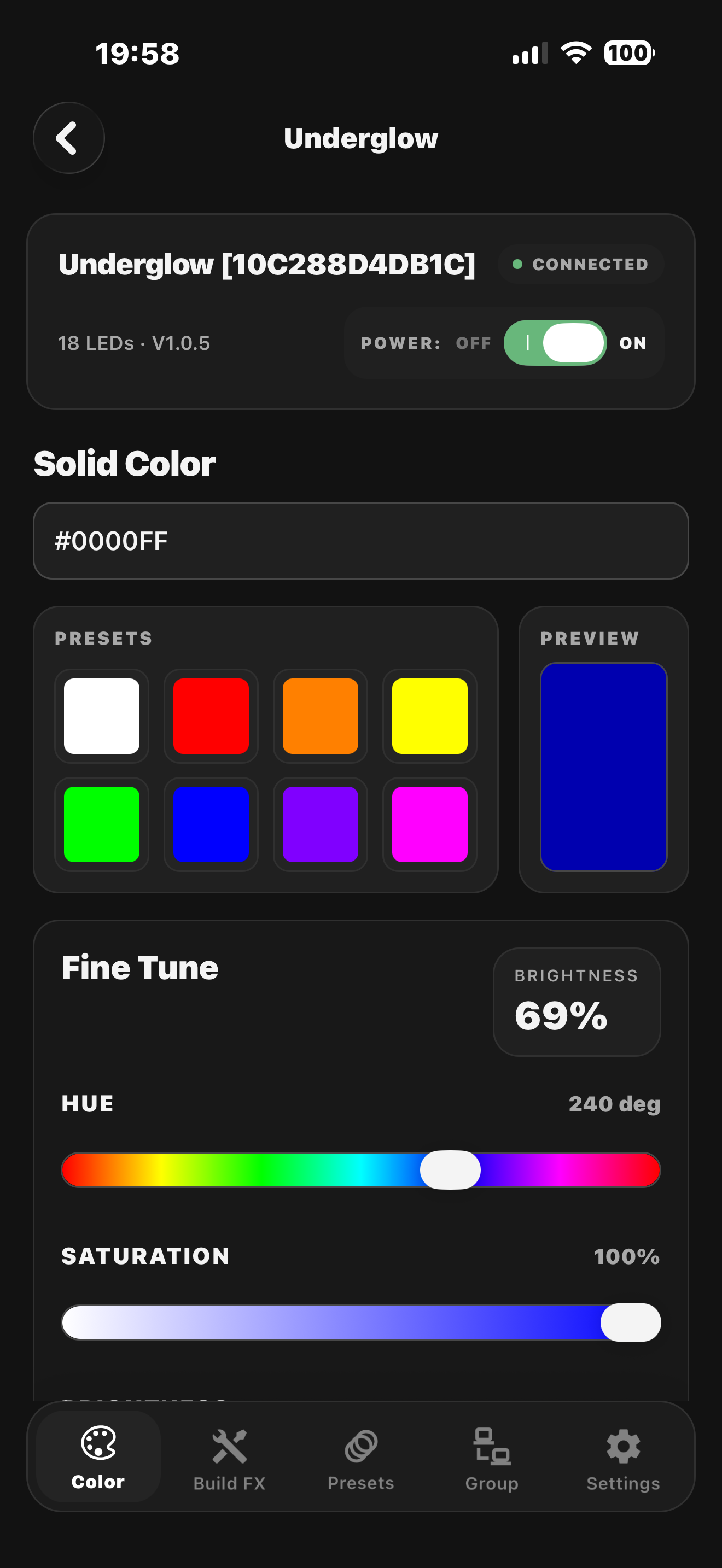
The most simple mode for your device. Choose between any solid color you would like using a Hex Code, sliders, or presets.
We curated some preset colors for common setups. Each color is tuned to display nicely on an LED strip.
When using the sliders you will have 3 bars - Hue, Saturation, and Brightness:
- The Hue slider is the color base.
- The Saturation slider is the level of that hue; all the way to the left is white and all the way to the right is the full hue.
- The brightness slider is just that, how bright the color is.
Build Custom FX
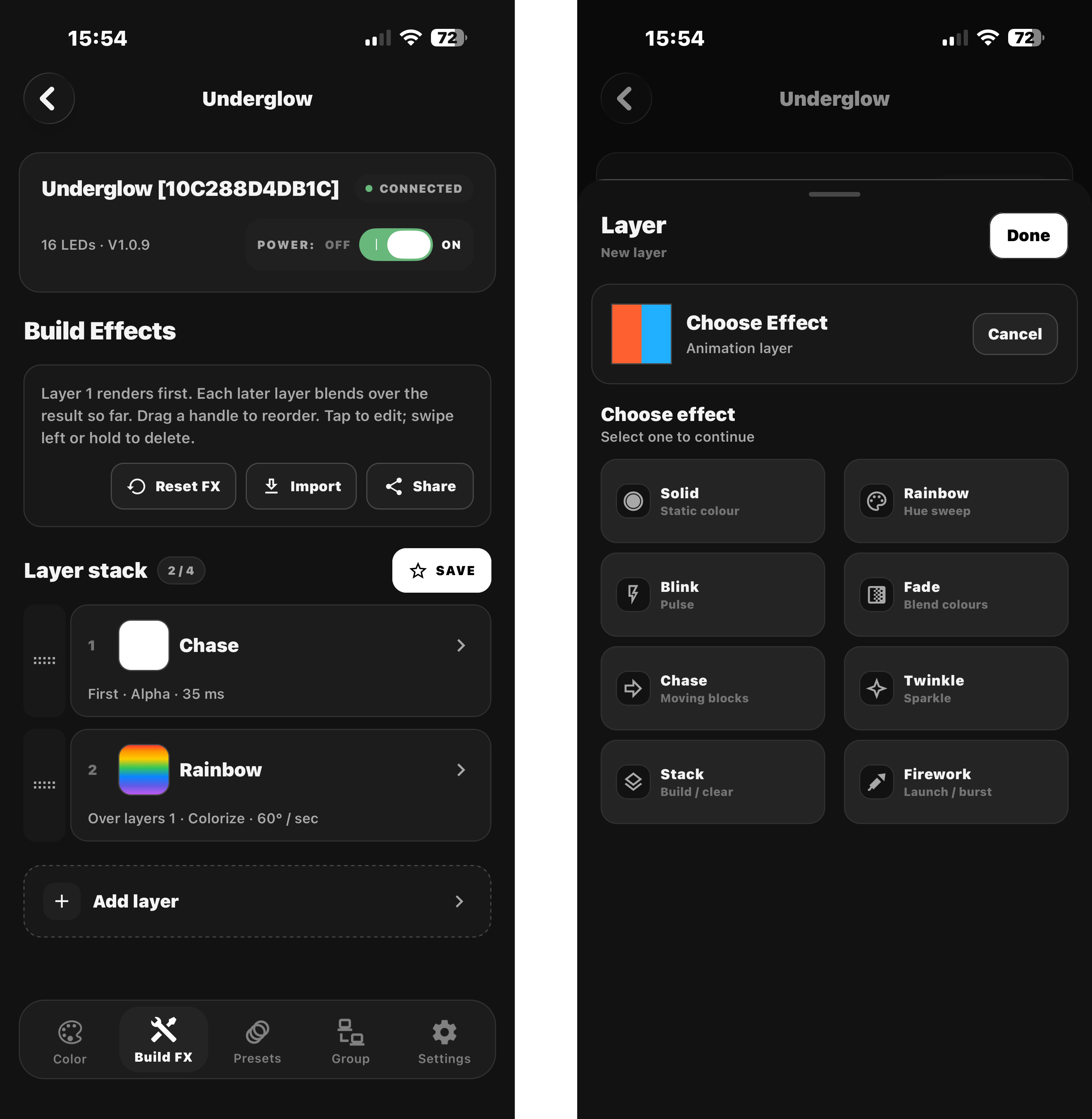
Building a custom animation can feel daunting at first. That's why we gave you complete control over your effects and styles. If we can configure it in code, you can configure it here.
New to custom animations? Check out our in-depth guide to walk you through creating your first one.
Each animation is built from layers, giving you control over every detail. Adjust speeds, colors, fades, delays, directions, and behaviors for each effect. Then stack additional layers and blend them together to create something completely unique.
Preset Animations
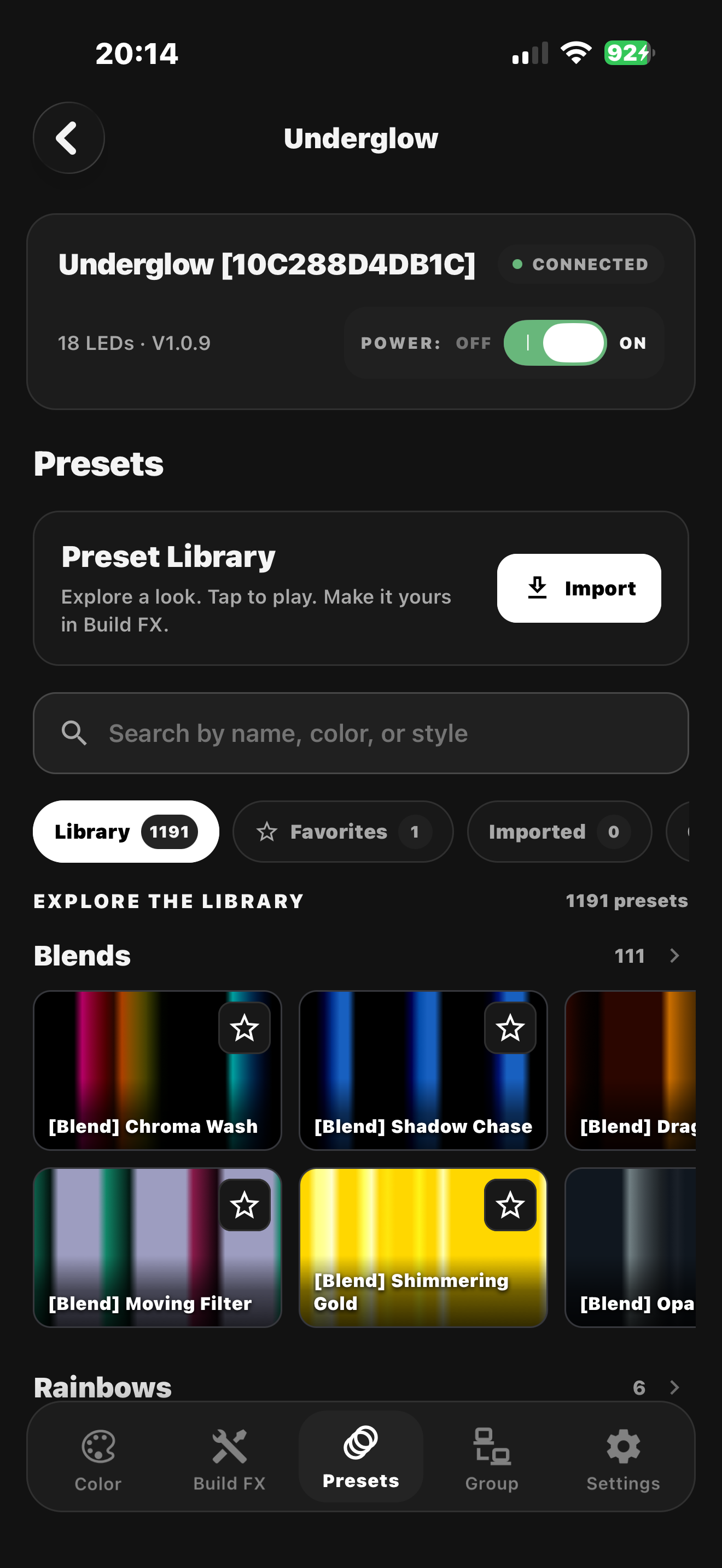
We've packed the app with over 1,180 presets to get you started. And we're just getting started — the library will continue to grow with your feedback and new community creations.
Browse or search by color and effect, then select a preset to try it instantly. Star your favorites to keep them organized, and any custom animations you create and save will appear here too.
Created something awesome? Share your animation on social media and tag us. Your creation could be featured in the preset library for everyone to enjoy.
Importing and Sharing Presets
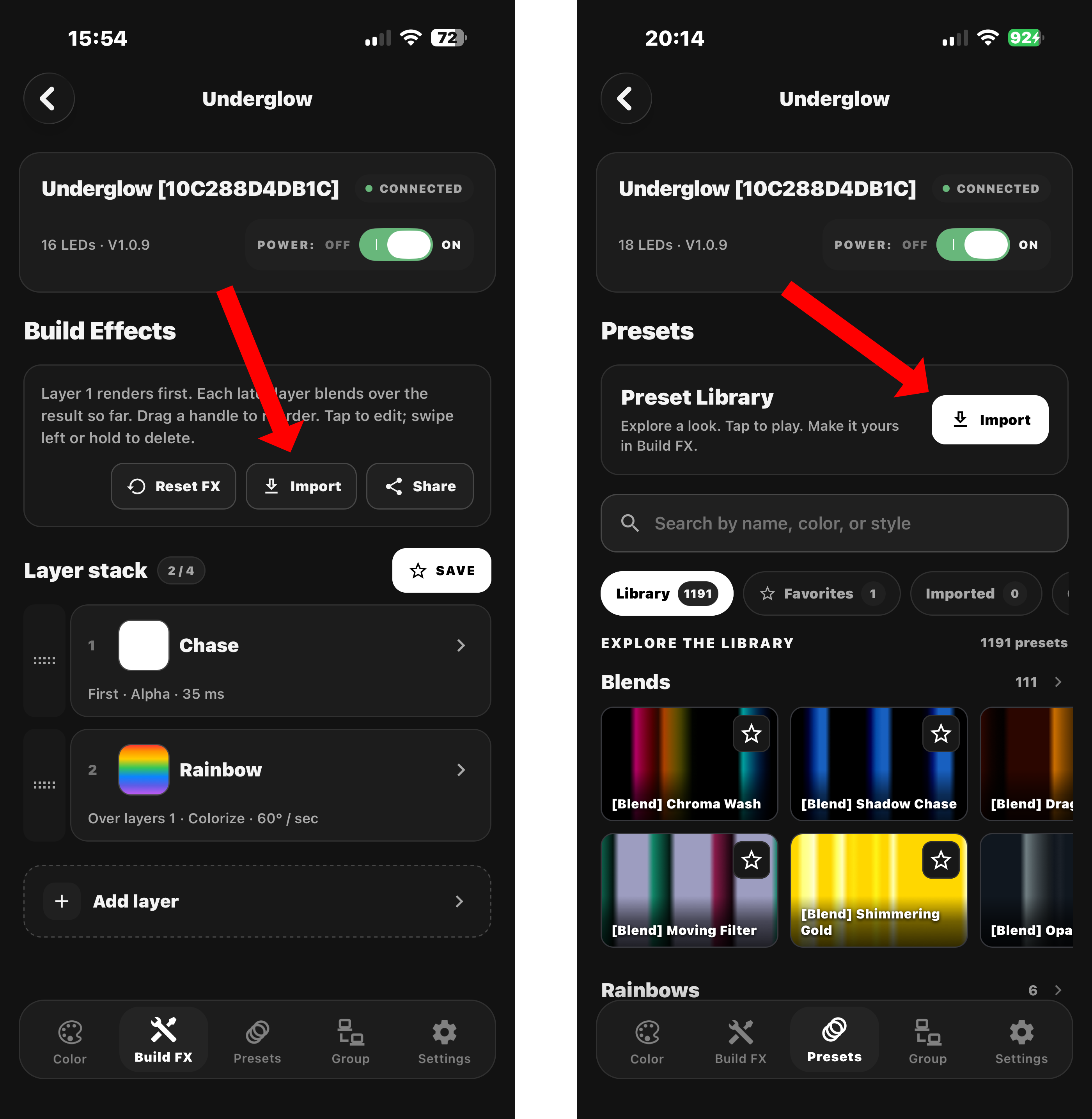
Found an animation you want to use or share your own creation?
From the Build FX or Presets screen, tap Import and enter the animation's share code. Instantly load another creator's animation, then make it your own by changing the colors, effects, timing, and more.
Want to share an animation you created? From the Build FX screen, tap Share to generate a unique share code. Send it to your friends, followers, or community and let them build on your creation.
Group Sync Mode
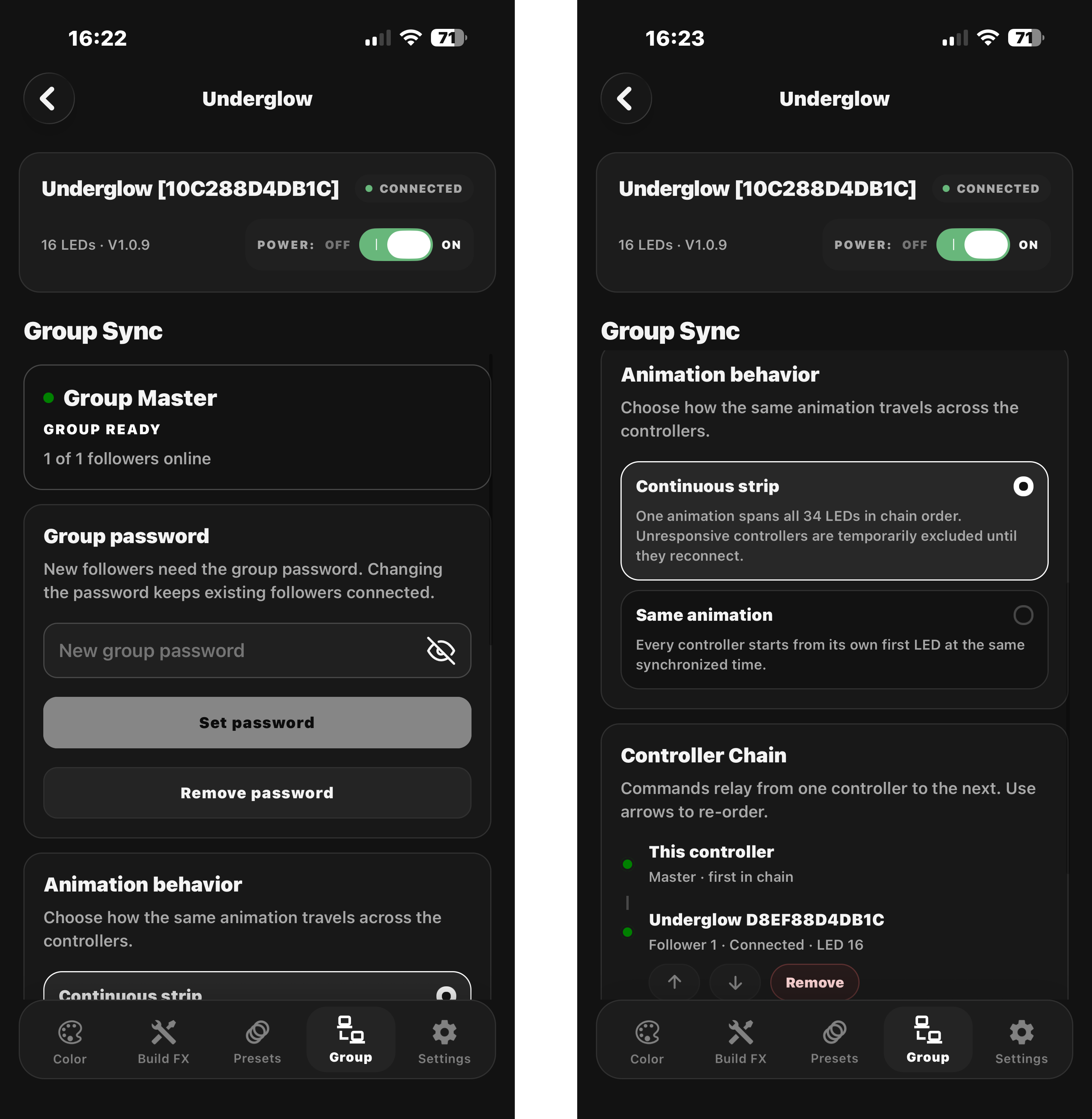
Group Sync is our signature feature. Connect up to 10 cars and turn them into one synchronized light show. Play the same animation or color on every car at once, or distribute an animation across the entire group for effects that move from car to car.
Groups can be password protected, organized, and managed by the master controller. Other controllers can join or leave the group as followers, while the master controller controls the colors and animations across the entire group.
Stay connected with reliable range of up to ~250 ft between each car.
Use this screen to create, join, and configure your Group Sync settings.
App/Controller Settings
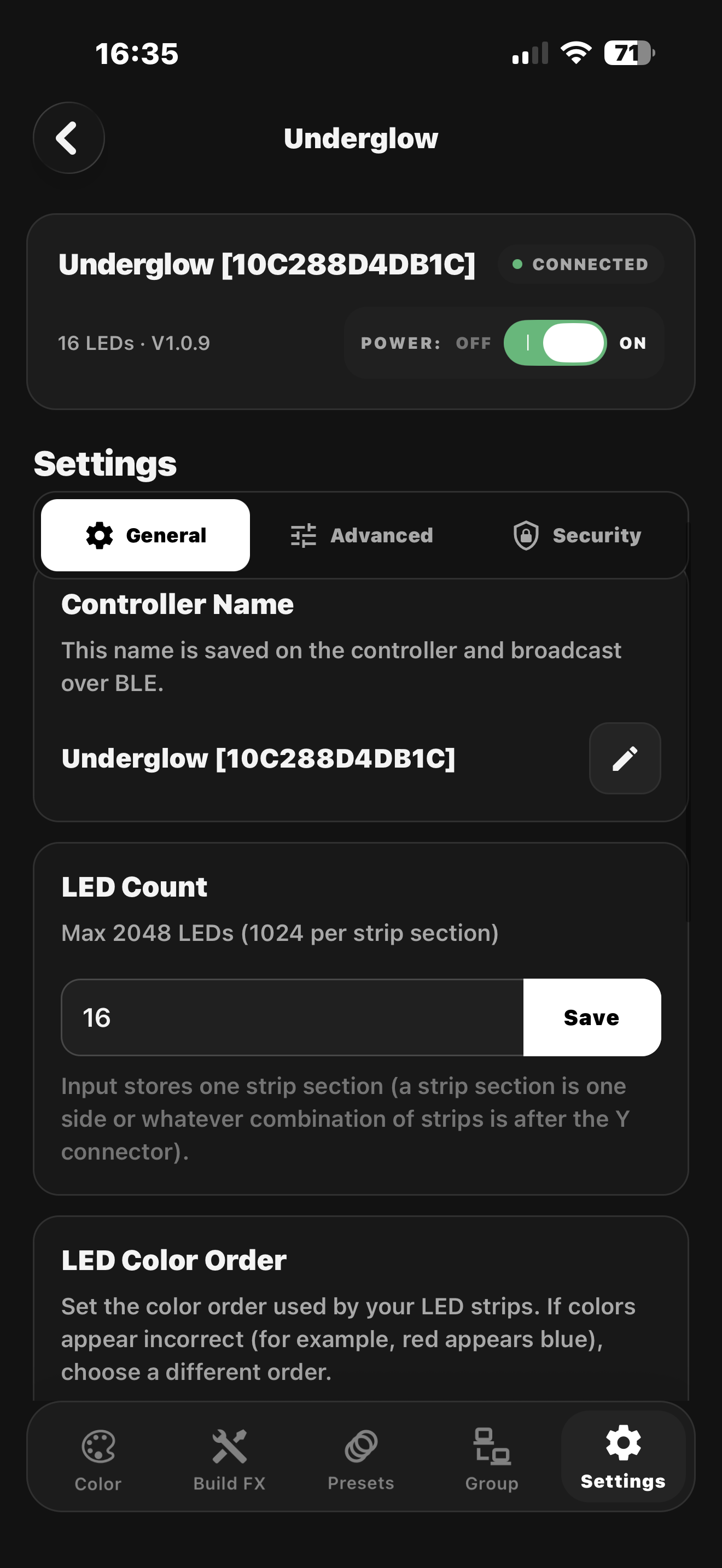
This is where you'll find the settings you'll use most often, including controller name, LED count, LED color order, and firmware updates.
You can also protect your controller with a password. Once enabled, anyone attempting to connect will need to enter the password before they can access the controller.
Advanced settings give you even more control, including color correction, power limiting, LED IC configuration, and other low-level options. These settings can significantly affect how your controller and LEDs operate, so we recommend leaving them at their defaults unless you understand their effects or have been instructed to change them.
You can also factory reset the controller in the general settings tab.
If you run into any issues with your LEDs and need help debugging, checkout our troubleshooting guide here.