
MusicSync: create music-reactive LED animations
Build layered lighting that responds to your music. Learn the effects, audio controls, colors, placement, and preset workflow in the Prismal PFX MusicSync editor.
Connect and prepare your audio
MusicSync turns audio into layered LED animations. Make a bar grow with bass, launch comets on beats, or scatter treble sparkles over a moving background. Each layer can listen to a different band and control its own colors, shape, and response.
Use a MusicSync-capable Prismal controller with compatible firmware and connect the audio source using that controller's supported audio connection. The controller analyzes the audio; playing a song on your phone alone does not supply audio to its input. Check your controller's setup instructions for the physical connection.
- Connect in the Prismal PFX app and open MusicSync in the lighting workspace.
- Start playing audio through the controller's connected source.
- Check that the lights are enabled and their LED layout is correct.
- Begin with one layer in Music only mode so its response is easy to see.
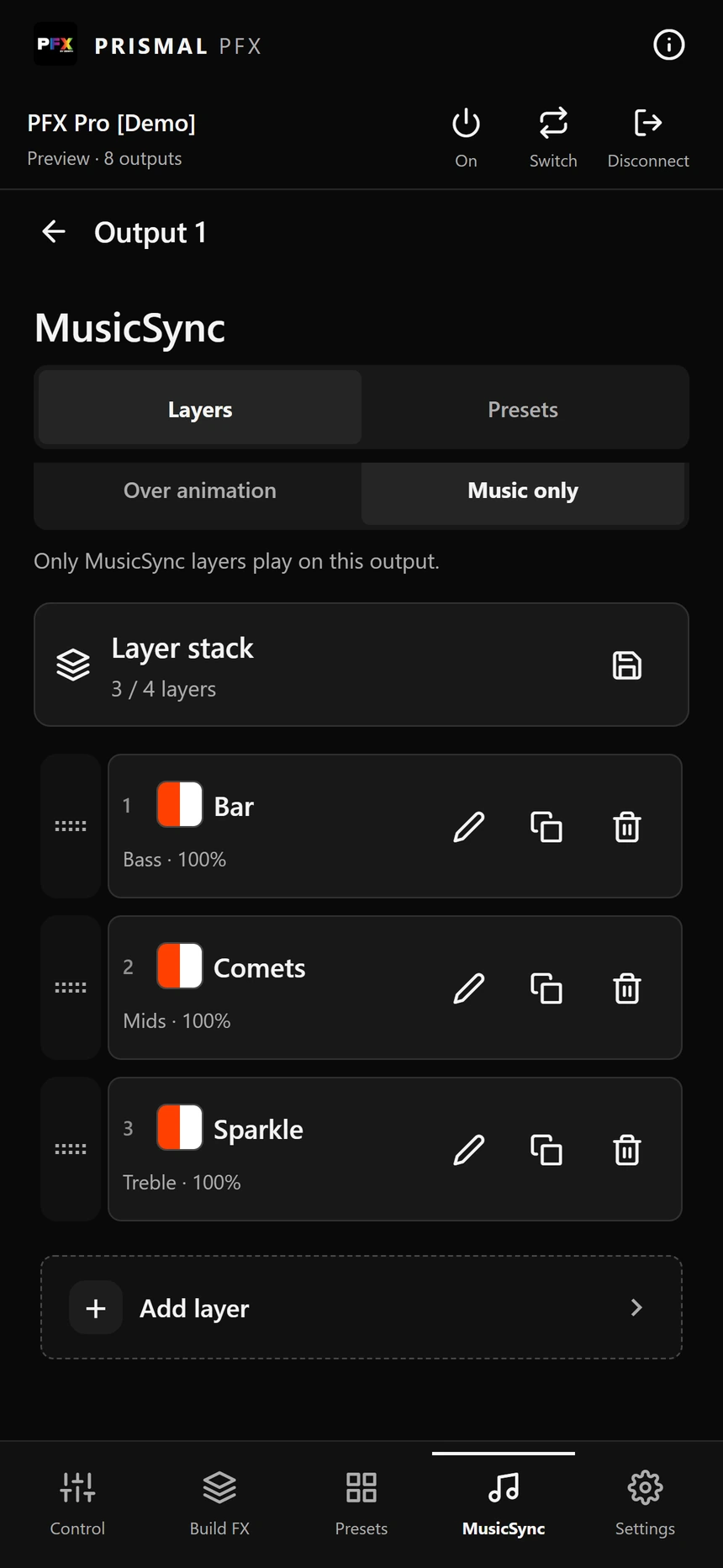
MusicSync availability and the route into its workspace depend on your controller. Screenshots show the shared editor inside a PFX Pro output. On PFX Pro, open Outputs → an output → MusicSync; its controller guide covers output routing. Update the firmware if a feature is unavailable.
Make your first reactive effect
- Choose Layers → Add layer → Bar.
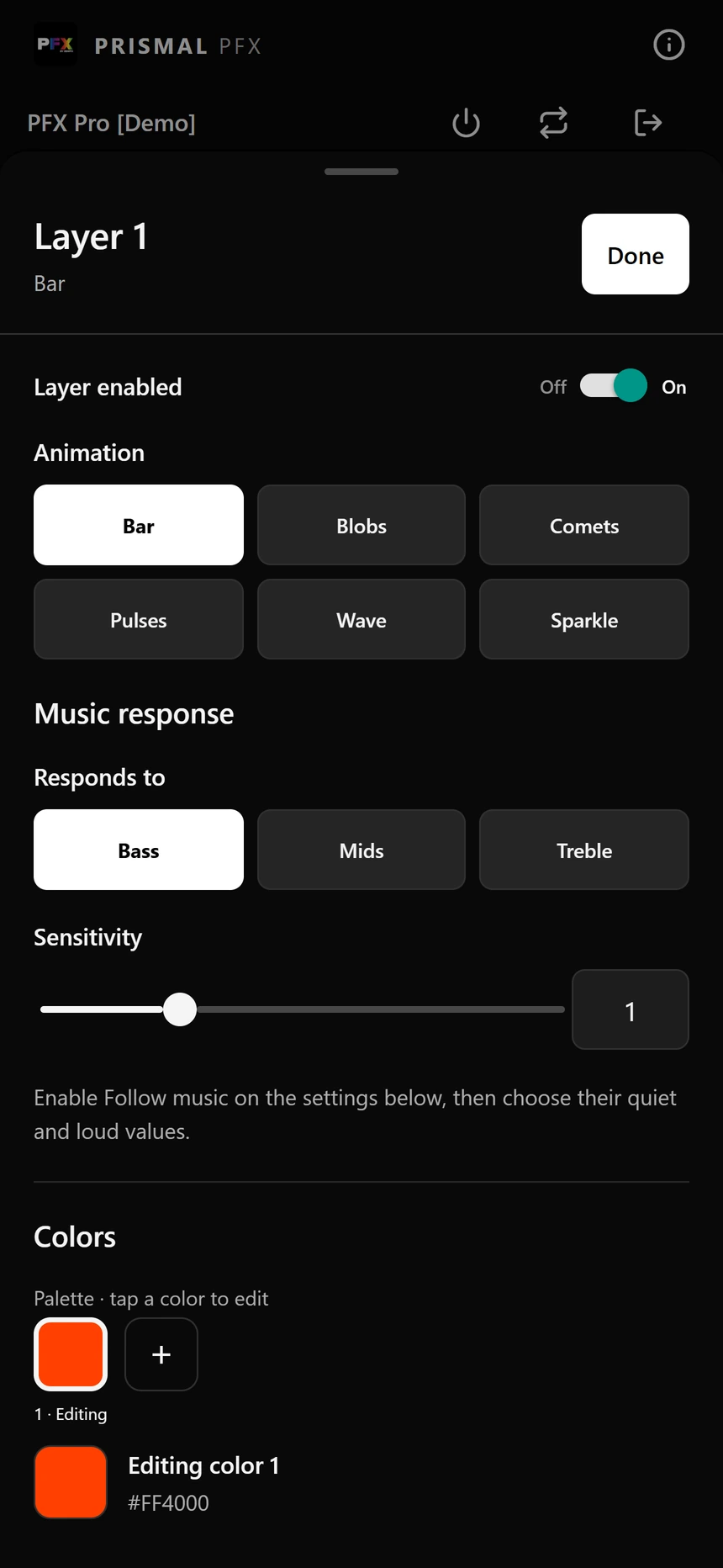
- Keep Layer enabled on and select Bass under Responds to.
- Choose one bright color, such as blue or cyan.
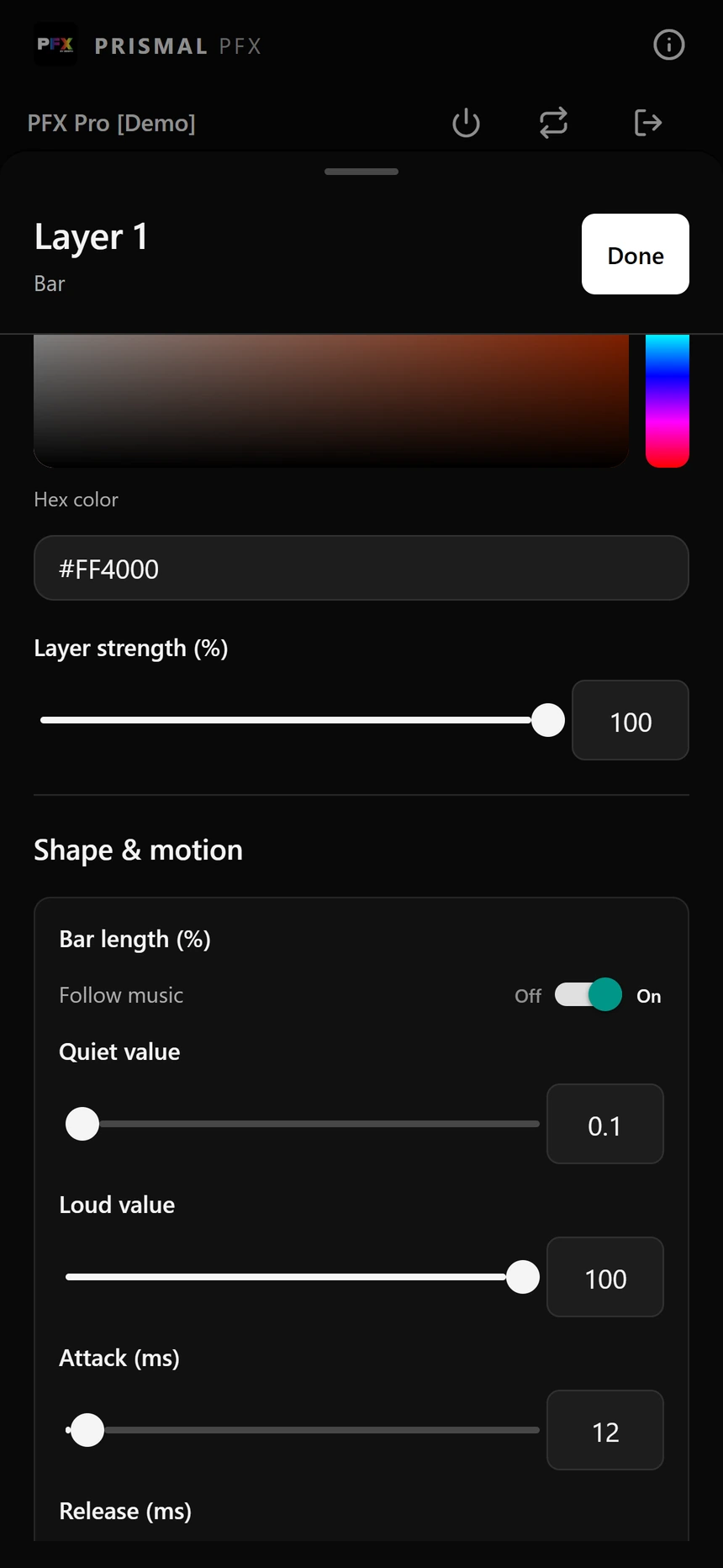
- Under Shape & motion, keep Follow music enabled for Bar length (%).
- Try a quiet value near 1% and a loud value of 100%, then adjust Sensitivity until bass notes produce a useful range of movement.
- Tap Done and save the composition as a MusicSync preset.
If the bar stays full, reduce sensitivity or the audio input gain. If it barely moves, check the audio connection before raising sensitivity. Tune at the listening volume you expect to use, then adjust one setting at a time.
Choose an animation
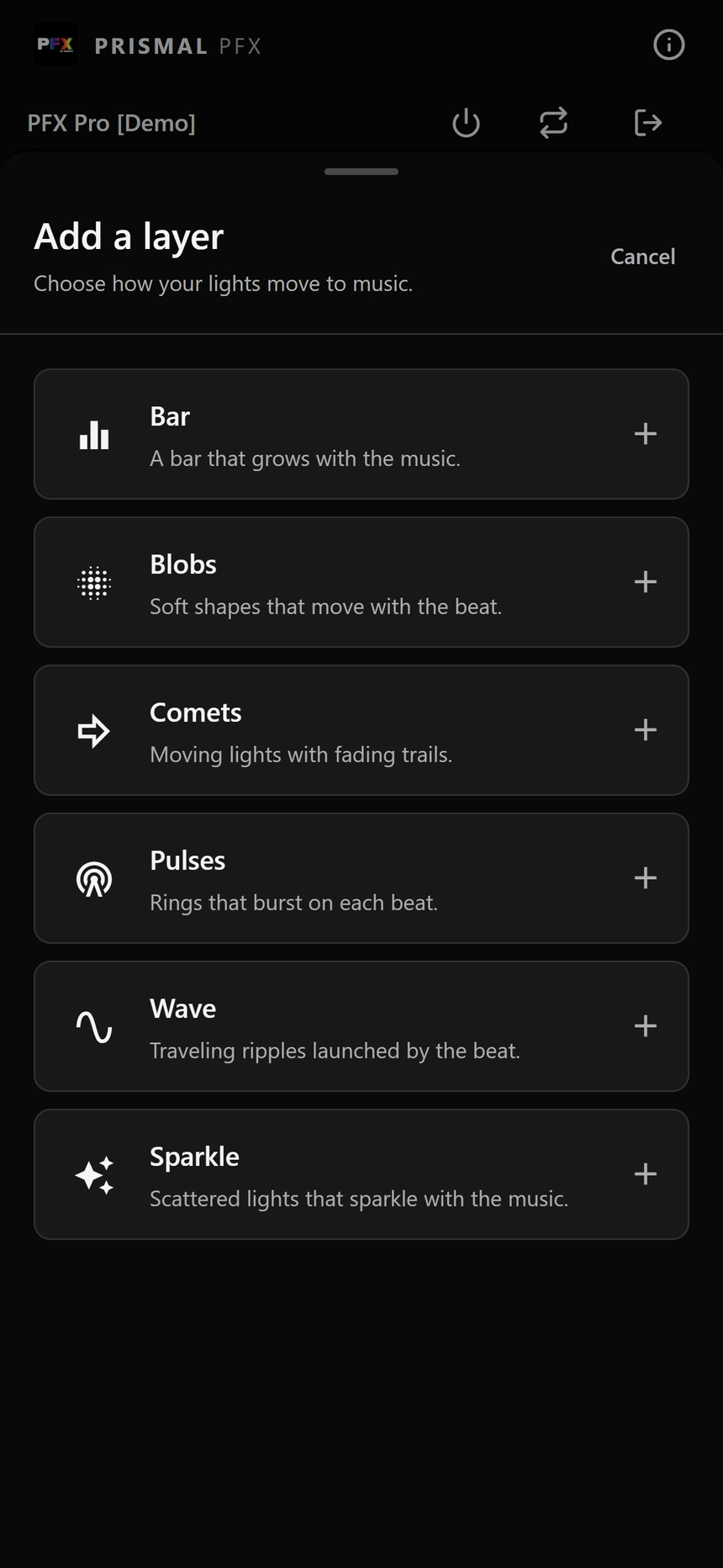
Tap Add layer to choose one of six looks. A composition supports up to four layers.
| Animation | Look | Start by adjusting |
|---|---|---|
| Bar | A bar that grows with the music | Bar length, origin, attack/release |
| Blobs | Soft moving shapes | Size, travel speed, nodes |
| Comets | Moving lights with fading trails | Travel speed, trail length |
| Pulses | Rings launched on beats | Origin, size, beat threshold |
| Wave | Traveling ripples | Ripple density, speed, lifetime |
| Sparkle | Scattered reactive points | Size, nodes, lifetime |
Tap a layer in the stack to edit it. Duplicate layers to try a second band or region, drag their handles to change order, or disable a layer while comparing results. Changing its animation selects starting values for the new look, so recheck its motion settings.
Choose bass, mids, or treble
- Bass: useful for kick drums, low notes, and broad pulses.
- Mids: useful for vocals, instruments, and a supporting motion layer.
- Treble: useful for hi-hats, cymbals, and small sparkles.
The main Responds tochoices use the combined stereo band. They set the layer's trigger and its active Follow music mappings. Advanced controls let you choose left, right, or combined bands for individual properties.
Sensitivity scales how strongly that layer responds. Controller-level audio gains affect the incoming bands more broadly; use those for source-level calibration, then use layer sensitivity for artistic balance. On PFX Pro, audio gains are in Controller settings → Audio sensitivity, followed by Apply sensitivity.
Follow music and quiet/loud values
Each supported shape or motion property can hold a fixed value or react to audio. Turn Follow music off to keep a constant value. Turn it on to set Quiet value and Loud value instead.
For a Bar length quiet value of 5% and loud value of 80%, quiet passages leave a short bar and louder passages grow it toward 80%. For movement, a quiet travel speed of 0 and loud speed of 0.5 makes the layer accelerate with audio.
Quiet and loud values describe the property's output range. Input minimum, input maximum, threshold, and sensitivity determine which audio levels reach those values. A fixed property can stay steady while a different property in the same layer reacts. For example, keep color and position fixed while bar length follows bass.
Beat and continuous spawning
Blobs, Comets, Pulses, Wave, and Sparkle create moving objects called nodes. Choose their Spawn nodes behavior:
- On beats: crossing the beat threshold creates new nodes. Louder beats can create more or larger nodes.
- Continuously: nodes spawn more quickly as the selected audio band gets louder.
In On beats mode, raise Beat threshold (%) to require stronger hits, or lower it to catch softer hits. Nodes per beat controls the burst; in continuous mode, the corresponding control is Nodes per second.
Existing nodes continue moving and fading after their initial trigger. Node lifetimecontrols how long they remain. Under Advanced controls, Cooldown (ms) limits repeated triggering and Deactivation threshold helps the detector reset between hits. A longer cooldown and higher beat threshold can reduce constant firing.
Colors and palettes
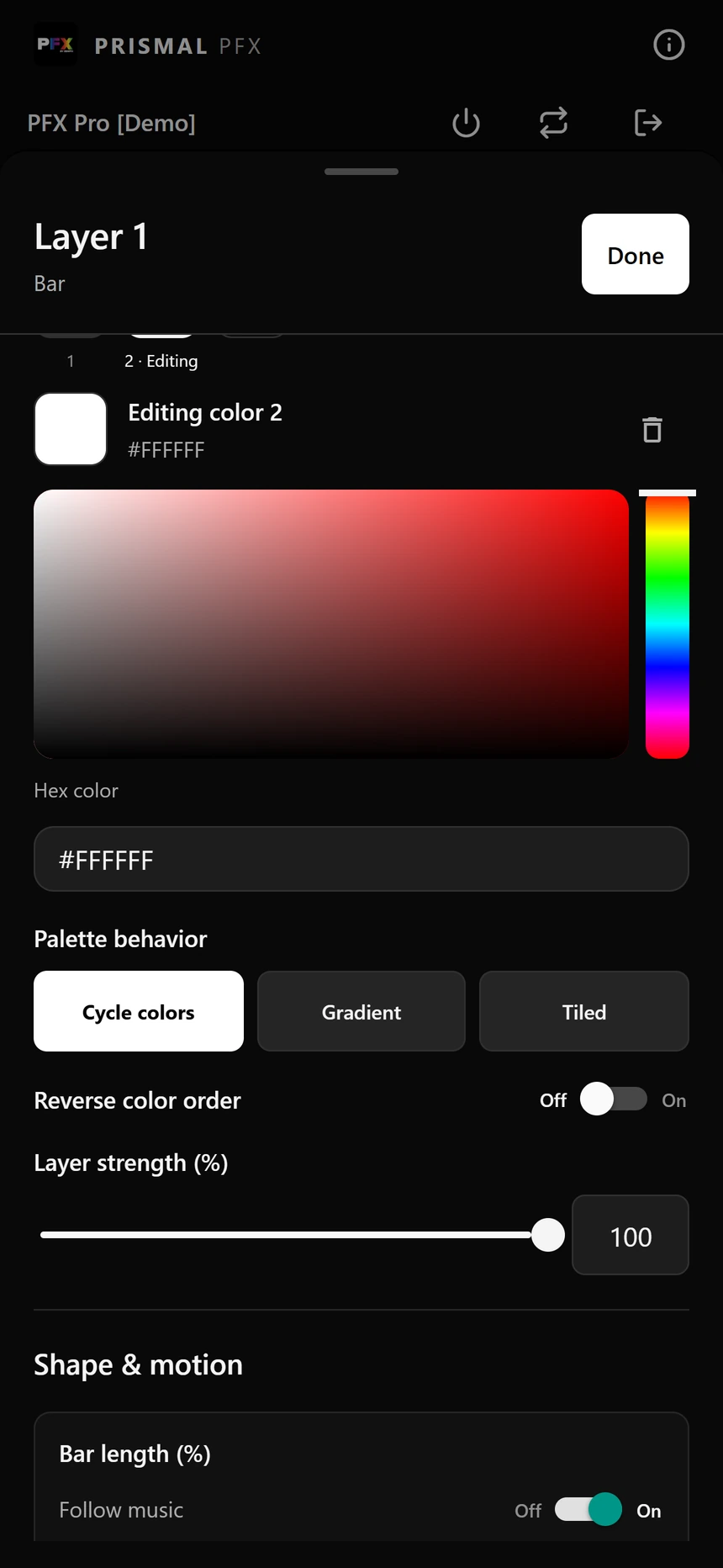
Use one to five colors per layer. With more than one color, choose Palette behavior:
- Cycle colors: use the palette as a sequence of colors.
- Gradient: blend through the palette. At 50%, Gradient balance spreads colors evenly; lower values favor the last color and higher values favor the first.
- Tiled: repeat solid blocks in palette order. LEDs per color set to 3 gives three pixels of each color.
Reverse color orderreverses the palette without reversing the layer's motion. Layer strength (%) controls its contribution to the composition. Gradient balance and Tiled require supporting firmware.
Shape and motion
The available controls depend on the animation:
- Bar length / Size: the portion of the region occupied by the bar or object.
- Travel speed: strip lengths per second. Negative values reverse direction; 0 holds position.
- Origin: the starting position within the region.
- Trail length: the tail behind a Comet.
- Ripple density: the detail of a Wave.
- Node lifetime: how long spawned objects move and fade.
Reverse region reverses the region's orientation. Mirror regionreflects the effect. Where available, Wrap objects lets moving objects wrap around the region. These controls change placement and motion independently of palette order.
For a clean result, start with a few nodes and short lifetimes. Increase density after you can clearly see the response.
Blend layers and place regions
In the main MusicSync view, choose Music only to show just the music layers, or Over animation to combine them with the current base animation. A bright base can hide subtle reactive changes; reduce its brightness while tuning.
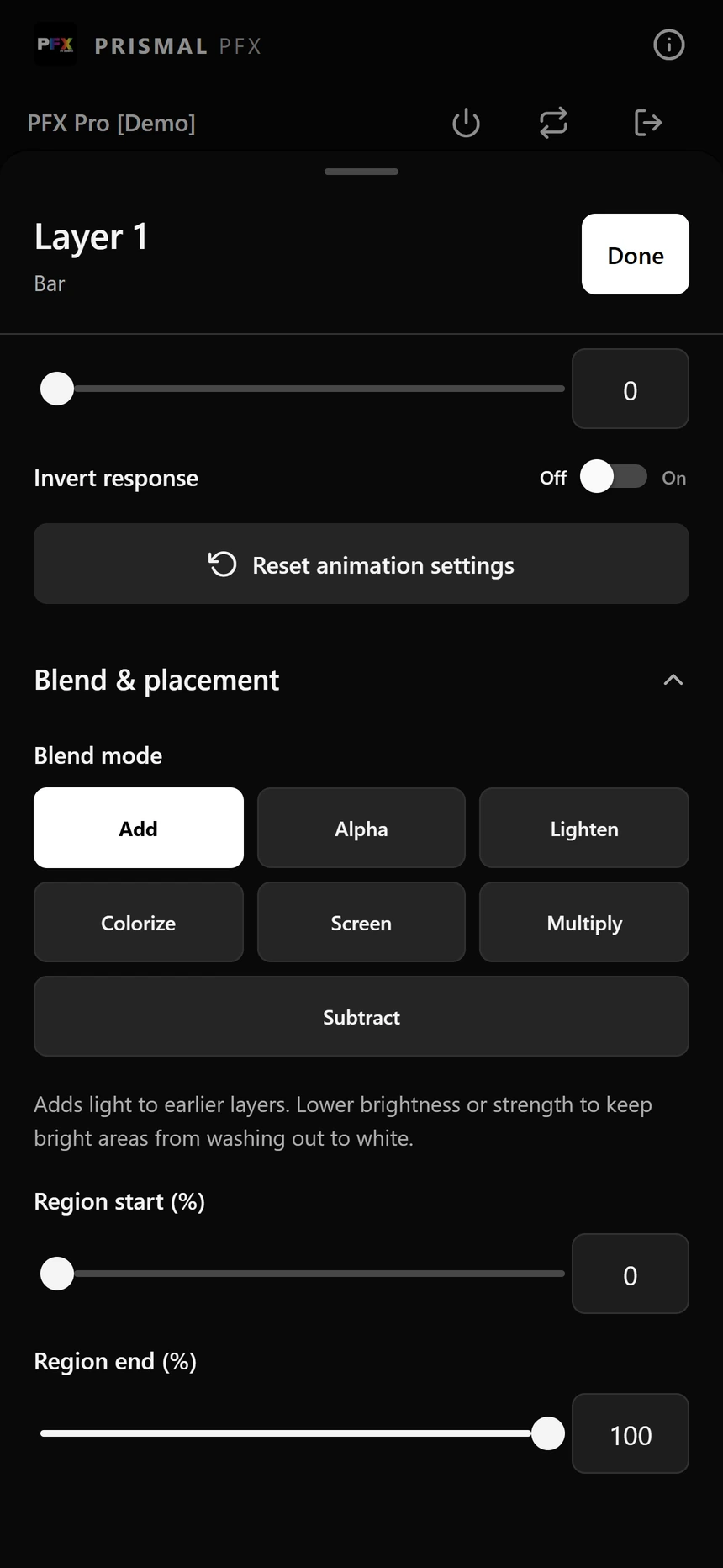
Open a layer's Blend & placement foldout. Add combines light, Alpha mixes according to strength, Lighten keeps brighter values, and Screen brightens the combination. Multiply, Subtract, and Colorize depend on lighting beneath them. Reorder the layer stack when you want to change which layers provide that base.
Set Region start (%) and Region end (%) to limit a layer. A region from 0% to 50% covers the first half; 50% to 100% covers the second half. The end must be greater than the start. Overlap regions when you want the layers to blend.
Advanced audio mapping
Open Advanced controls and choose a reactive property under Audio mapping. These controls apply to that property:
- Audio source: left, right, or combined bass, mids, or treble.
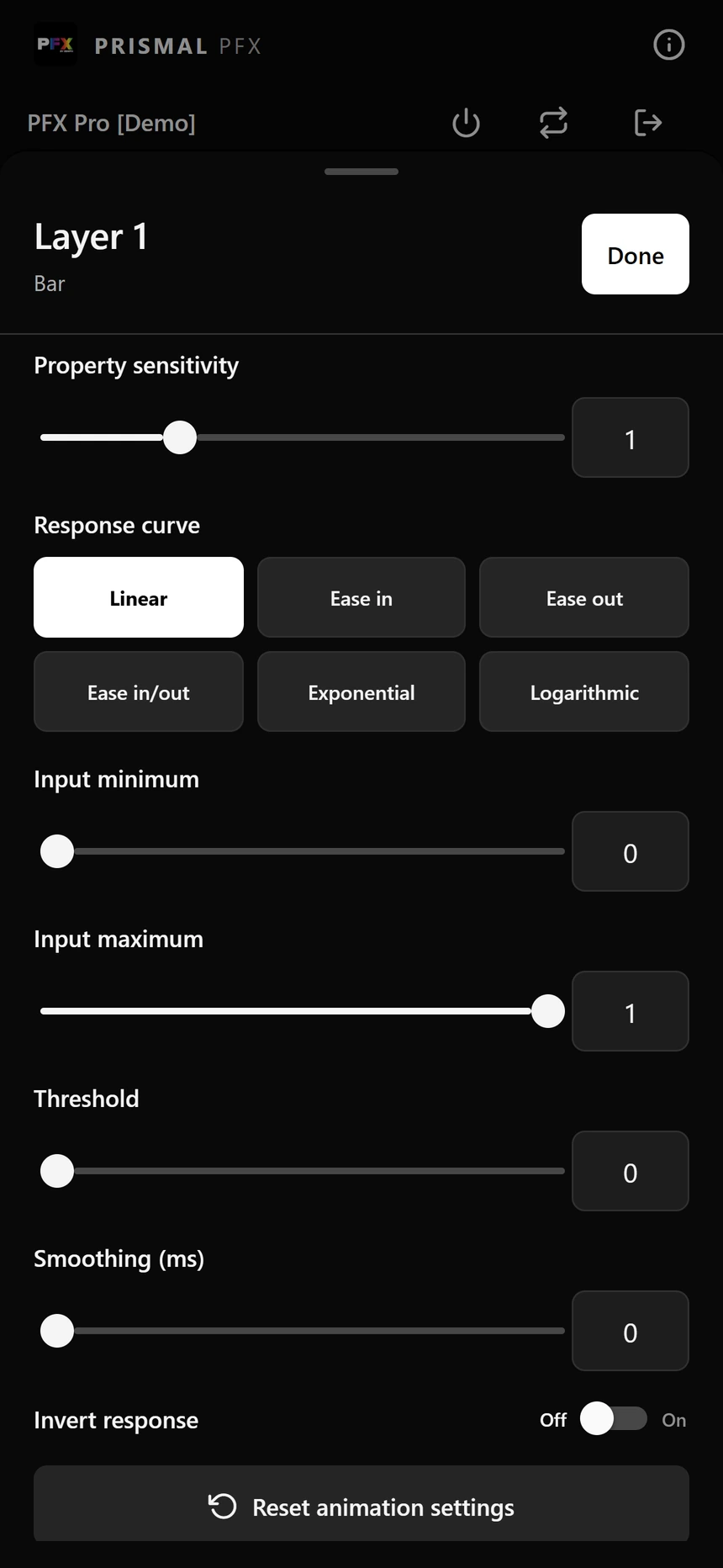
- Property sensitivity: scale the response for this mapping.
- Input minimum / maximum: define the audio range that maps between quiet and loud values.
- Threshold: reject low-level audio before it contributes to the response.
- Response curve: Linear, Ease in, Ease out, Ease in/out, Exponential, or Logarithmic.
- Attack (ms): how quickly the response rises.
- Release (ms): how quickly it falls.
- Smoothing (ms): reduce abrupt variation.
- Invert response: reverse how increasing audio changes the mapping.
For a sharp bass meter, try a short attack and a longer release. For calmer motion, add smoothing. If soft notes already reach maximum size, reduce sensitivity or expand the input range before changing the output values.
Node animations also expose trigger source, deactivation threshold, node brightness gain, cooldown, and maximum active nodes. Reset animation settings restores the animation's starting behavior; save a preset before experimenting with a look you want to keep.
Build a three-band composition
- Bass foundation: add a blue Bar. Let its length follow Bass, with a small quiet value and a large loud value.
- Midrange motion: add Comets in a contrasting color, choose Mids, and begin with a low node count.
- Treble detail: add Sparkle, choose Treble, use small nodes, and shorten their lifetime.
- Use Music only, reduce individual layer strengths, and enable one layer at a time while balancing sensitivity.
- Try separate regions if the effects compete, or overlap them with Add or Lighten for a mixed look.
- Save a named MusicSync preset. Recheck the mix on another song at your usual listening volume.
These are starting choices. Audio sources and music vary, so tune the thresholds and gains against your own setup.
Save, share, and import MusicSync presets
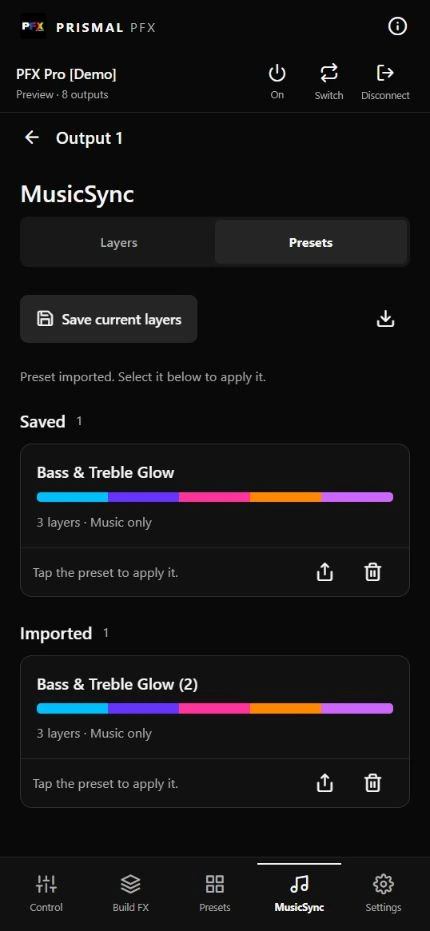
- Tap the stack's Save preset icon, or open Presets → Save current layers.
- Enter a name and save. Using an existing saved name replaces that preset.
- Tap a Saved or Imported preset to apply it. After editing, save again to keep those changes.
- Use a Saved or Imported preset's share icon to create a 12-character MusicSync share code. Choose Copy or Share to send the code.
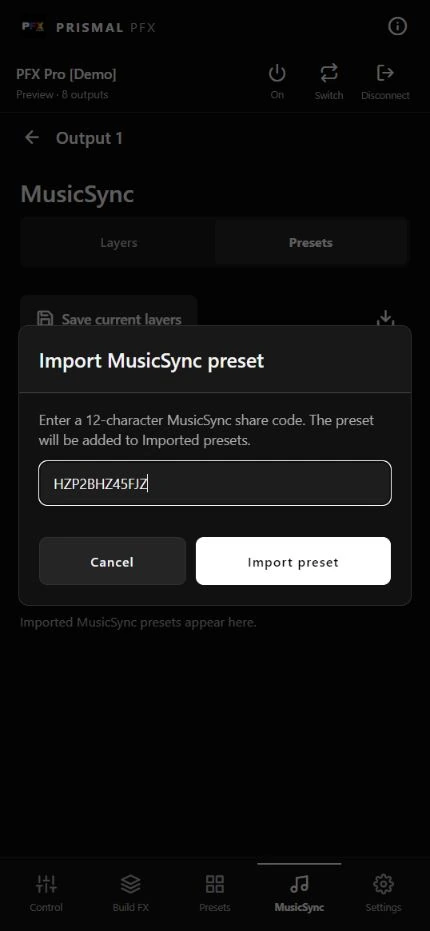
- On the receiving device, open MusicSync → Presets → Import MusicSync preset, enter the code, and choose Import preset.
- Find it under Imported and tap it to apply. Importing alone does not apply it.
Creating and importing share codes requires an internet connection. The share service stores the named preset, including its layers, colors, blend settings, and audio tuning; you only send the code. MusicSync codes belong in MusicSync. Animation codes belong in Layer Editor, and timeline codes belong in Timeline Editor.
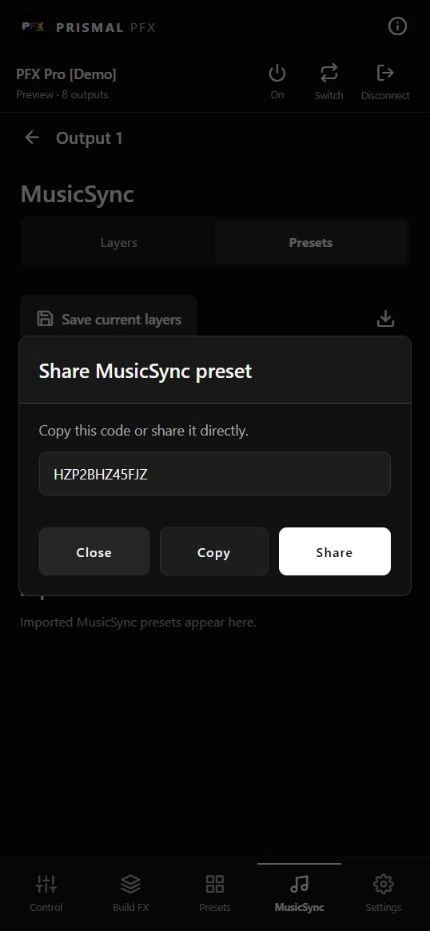
Saved and Imported libraries live on your phone. Importing adds a copy to your library; tap it to apply it to the selected output. If its name is already in your library, the imported copy gets a numbered suffix. After editing, save the preset and create a code for the updated version. Check controller firmware support before applying newer palette settings.
Troubleshooting MusicSync
- Nothing reacts to the music.
- Check the controller's physical audio connection and source playback. Enable the output and layer, choose Music only, and start with a Bass Bar whose length follows music. Check sensitivity and firmware support.
- The lights stay full or trigger constantly.
- Reduce layer sensitivity and source-level audio gain. For nodes, raise the beat threshold or cooldown. Check Follow music and its quiet/loud values.
- The response jitters or feels too slow.
- Adjust attack, release, and smoothing for the affected property. More smoothing steadies the response; excessive smoothing or release can blur separate beats.
- A layer is invisible.
- Check Layer enabled, Layer strength, region bounds, palette, and the mix mode. Multiply, Subtract, and Colorize need suitable lighting beneath them. Another timeline, input rule, or route may control the output.
- MusicSync stopped after I switched lighting modes.
- Return to MusicSync and check the active mode and composition. On PFX Pro, also check output routing, GroupSync, input actions, and Global Timeline overrides.
- Preset sharing or import fails.
- Check your internet connection and enter the complete 12-character MusicSync share code. Animation and timeline codes use their respective editors. If the code is not found, ask the sender to check it or create a new one. Update the app if the preset format is unsupported; update controller firmware if its palette features cannot be applied.
- The effect works but the colors are wrong.
- Fix the strip's LED layout and color order using LED troubleshooting, then return to MusicSync.