
GroupSync: connect and control your lights together
Set up a shared lighting show in the Prismal PFX app. Create a group, add controllers, choose how the lights play, and manage the group from one place.
Before you begin
GroupSync lets several Prismal controllers play lighting together. Give every car the same look, or let an animation travel across the whole group. A group can contain up to ten controllers.
- Install the Prismal PFX app, power the controllers, and keep them near one another while setting up.
- Check that each controller works on its own and install any requested firmware updates.
- Decide which controller you want to use to change the group lighting. The app calls this the master. The other controllers join as followers.
Connect the app to one controller at a time. Start by creating the group on the master, then switch to each follower to add it. For help making your first app connection, see the app setup guide.
Create a group
- Connect to the controller you want to use as the master.
- Open GroupSync. On PFX Pro, choose it from the controller overview beside Outputs and Inputs.
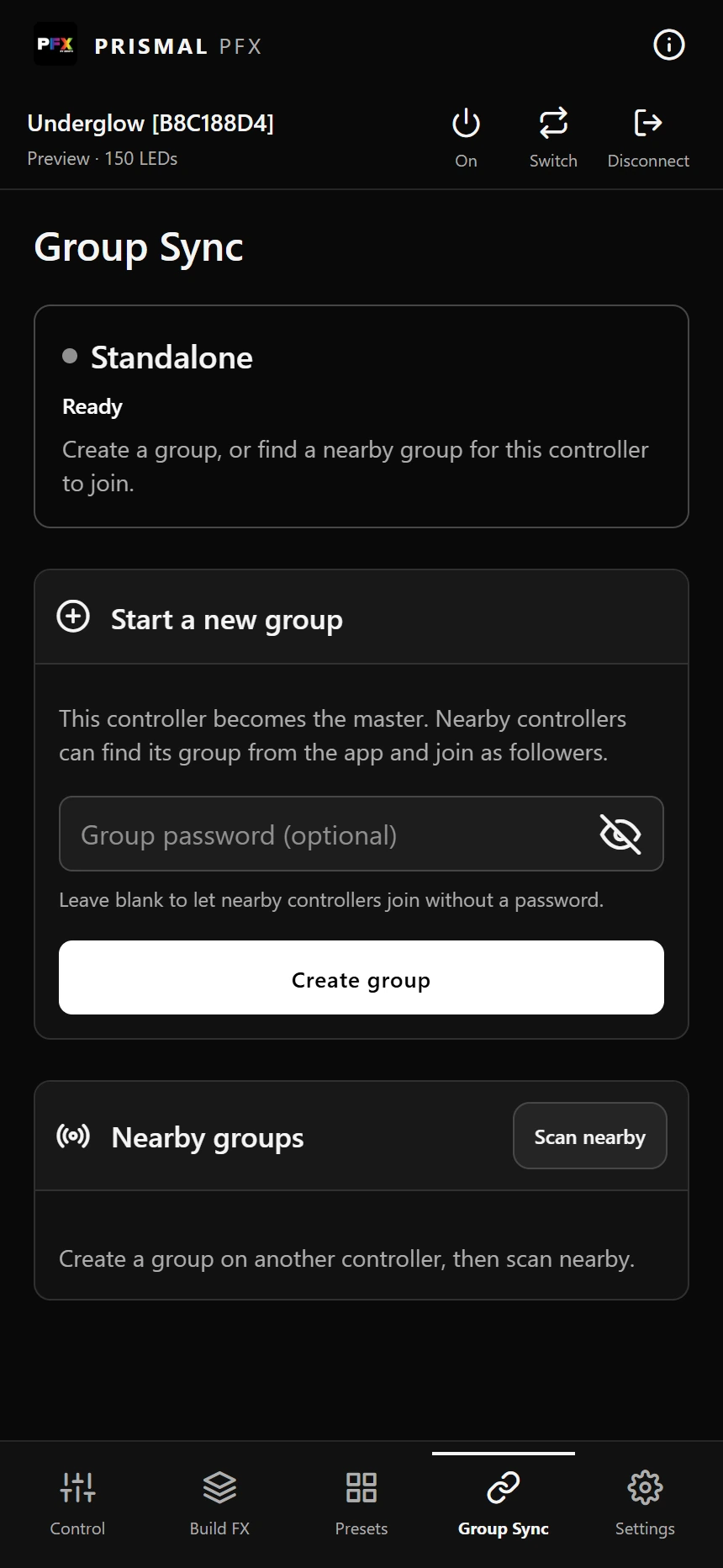
- Under Start a new group, enter an optional group password. Leave it blank if you want nearby controllers to join without one.
- Tap Create group.
The page changes to Group Master. Keep this controller powered while you add the others. You do not need to create a separate group on each controller.
Add controllers to the group
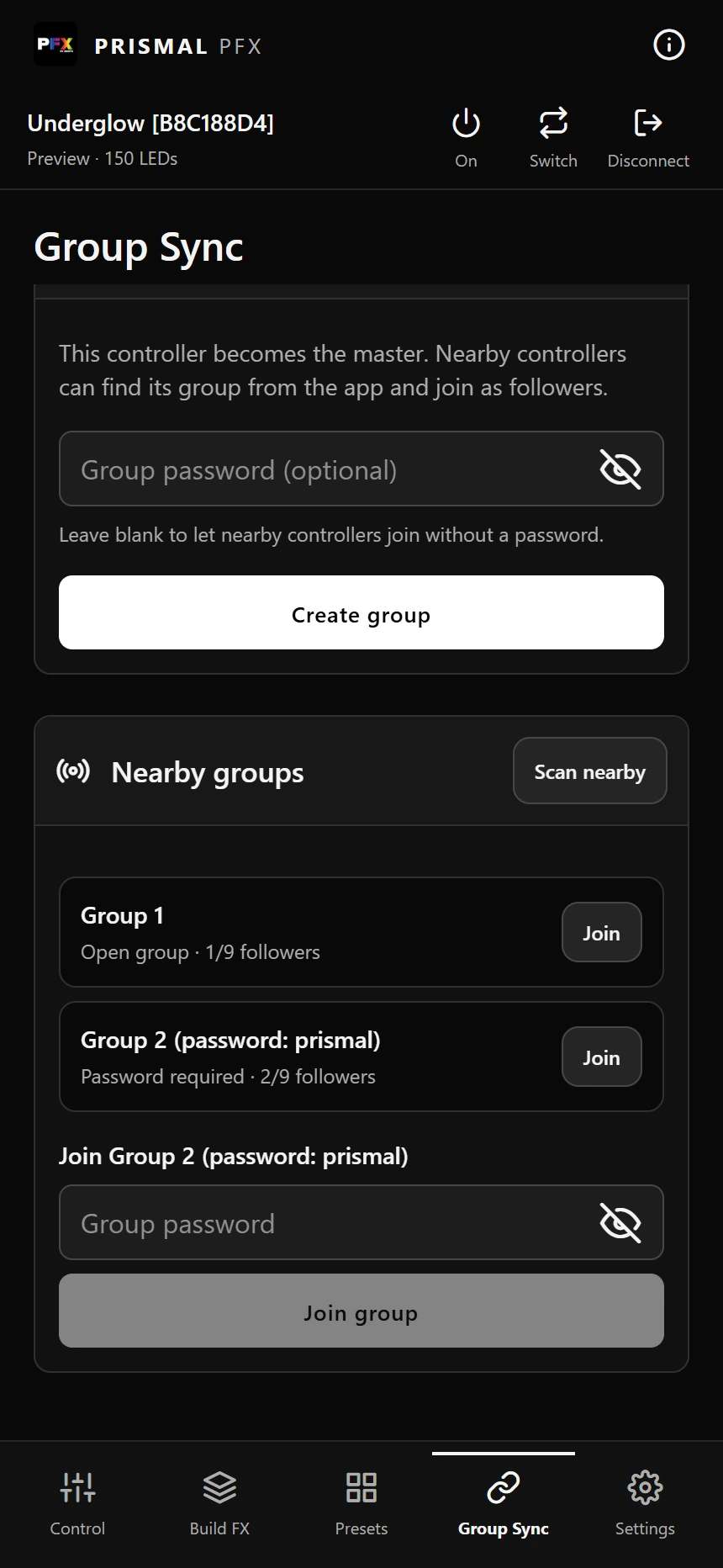
Master controllers cannot manually add follower controllers. A controller wishing to join a group must scan for and join themselves:
- On follower controllers, connect to them or have your friends continue below on their app:
- Open GroupSync. It should show Standalone. If it belongs to another group, leave that group first.
- Under Nearby groups, tap Scan nearby and wait for the list.
- Tap Join beside the group you created. For a protected group, enter its group password and tap Join group.
- Wait for Group Follower and a connected status.
- Repeat for the remaining controllers.
The group password is the one set when creating the group. A controller's own connection password is a separate setting. Ask the person who created the group if you need its password.
Choose how the lights play
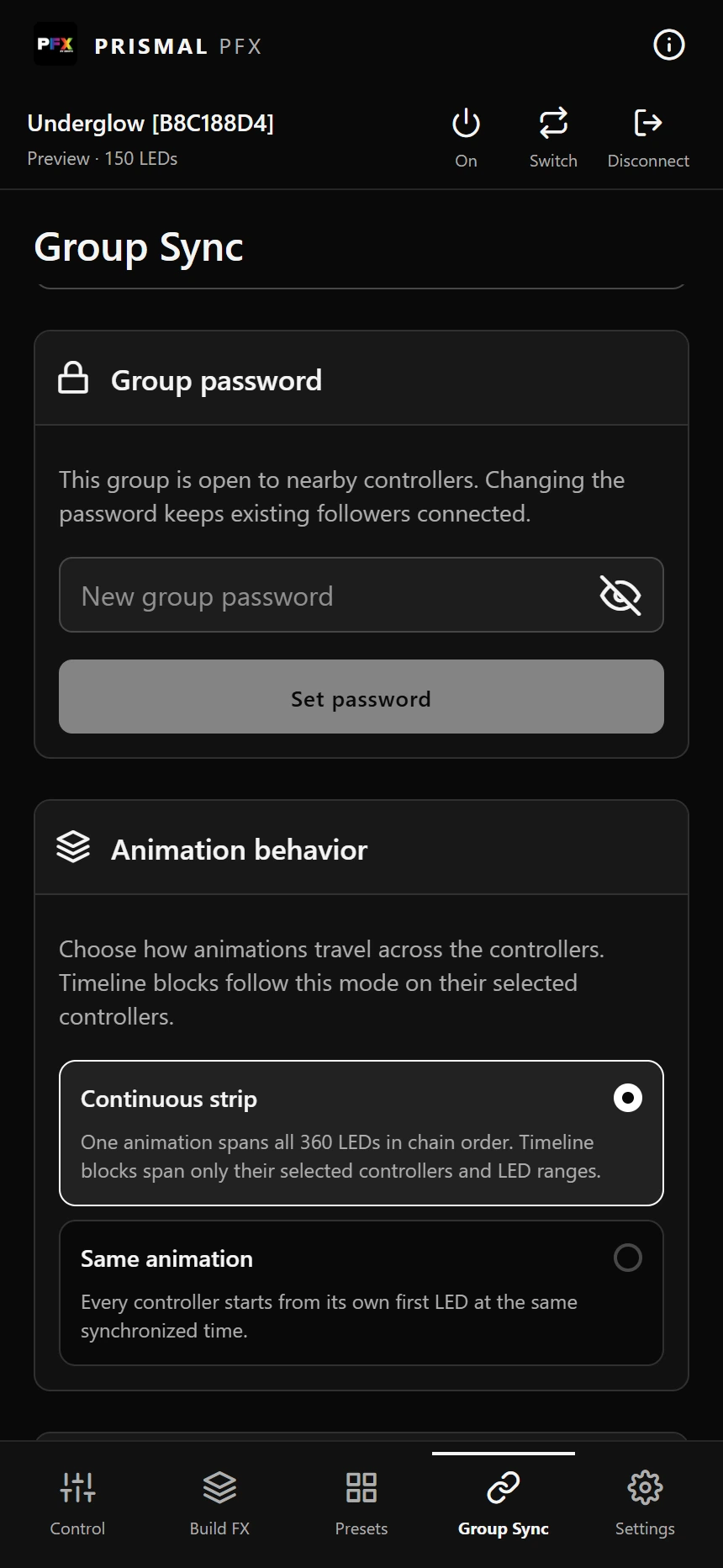
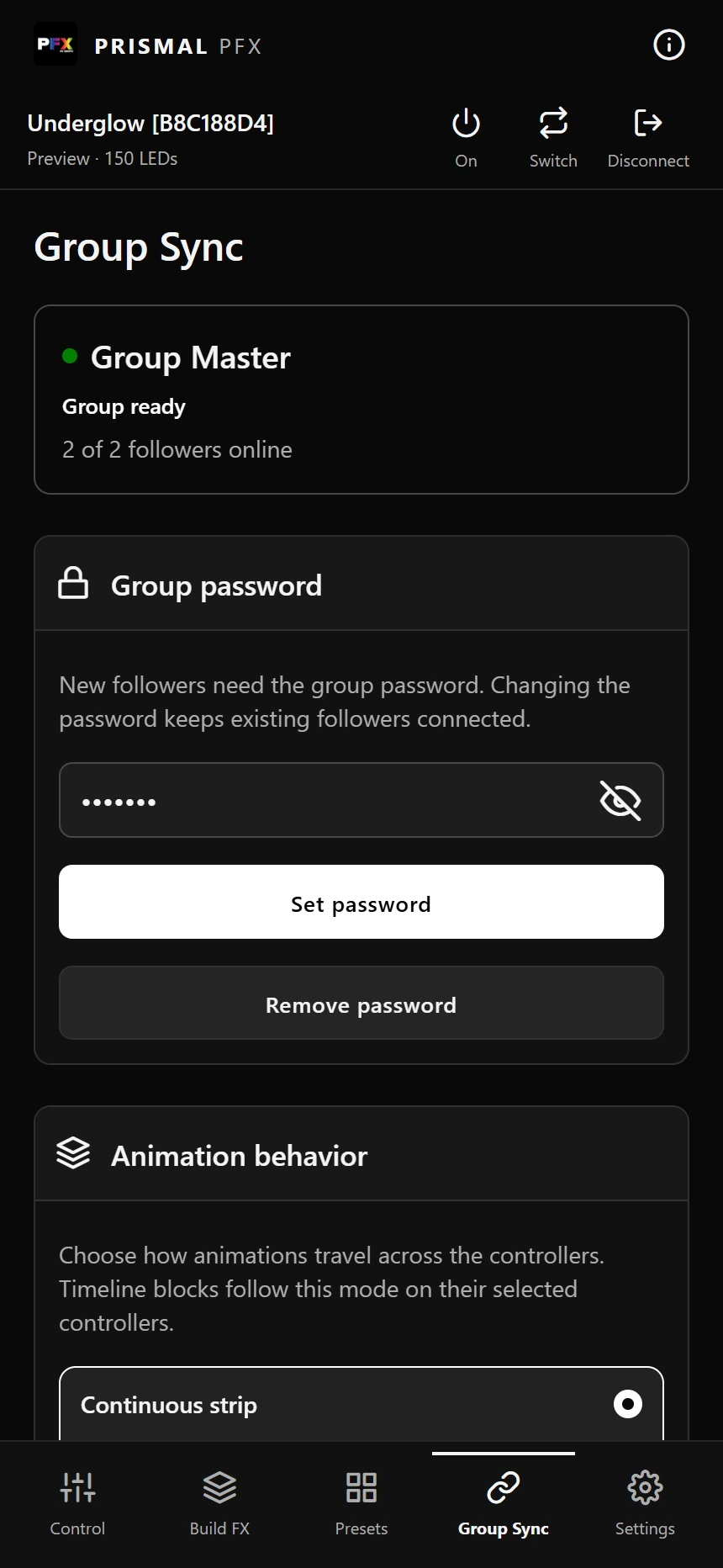
Connect to the master and open GroupSync → Animation behavior. Choose the look you want:
- Same animation: each controller shows a complete copy of the animation at the same time. Start here when you want matching cars.
- Continuous strip: the animation travels across the controllers in their listed order. Use this for a chase that moves from one car to the next.
The choice applies when you tap it. Try a moving preset to see the difference clearly. For Continuous strip, arrange the controller order to match the order of the cars.
Change the group lighting
Reconnect to the master to choose a color, apply a preset, or build an effect. Use the usual Control, Presets, and Build FXtabs; the joined controllers follow the group lighting.
On a PFX Pro master, open an output included in GroupSync. Changing its color, preset, or animation changes the group lighting, including the other included outputs. Use the Pro outputs controls to choose which outputs take part.
Use a timeline for a coordinated sequence
Open Timeline Editor from the master. Select a block and use Controllers to choose which controllers or available PFX Pro outputs receive it. Use separate blocks if you want different parts of the group to show different effects.
Use Update under Controller playback after editing the sequence. Follow the Timeline Editor group walkthrough for the full steps.
Reorder controllers or change the leader
Change the order
- Connect to the master and open GroupSync.
- Find Controller chain.
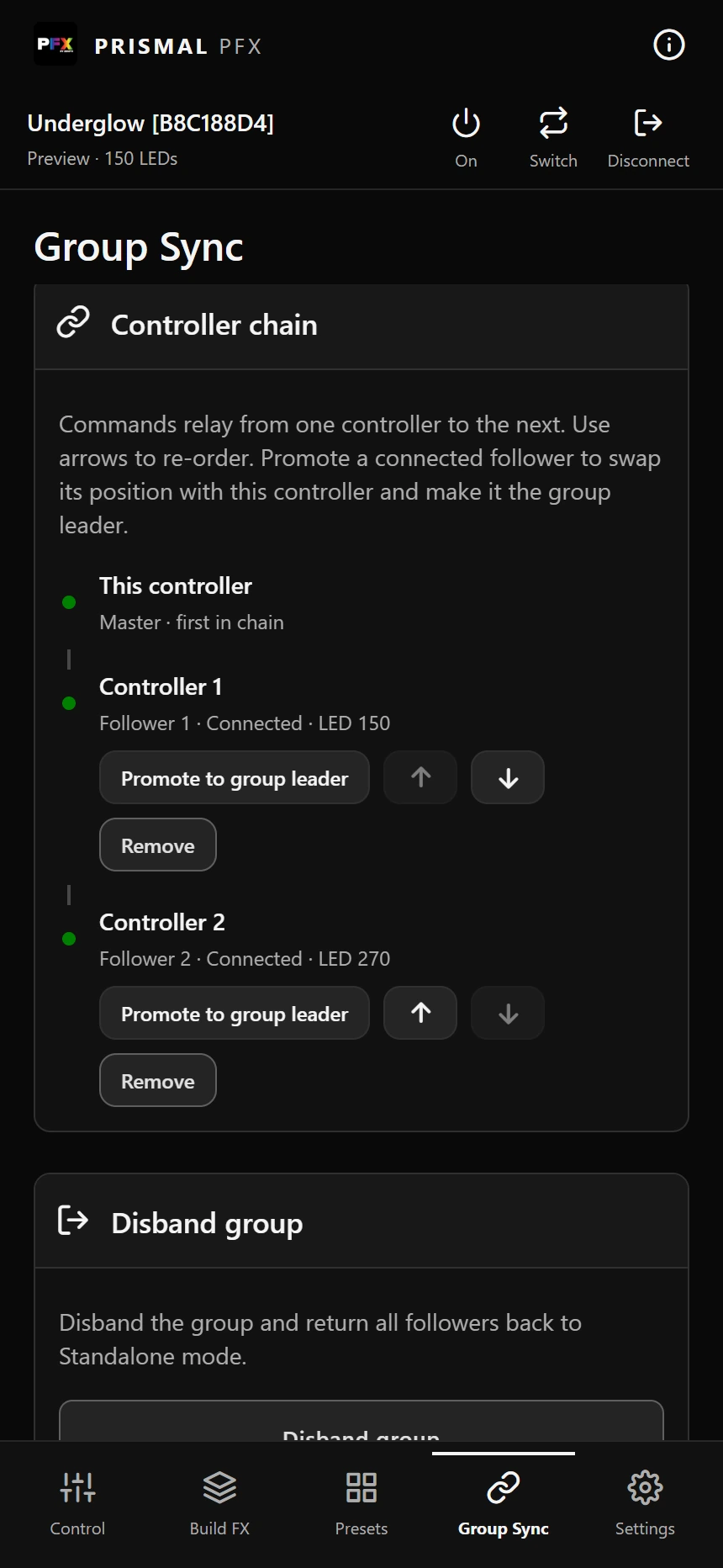
- Use the up and down arrows beside a follower to move it in the list.
For example, put the second car before the third car if you want a Continuous strip chase to visit them in that order. The master stays first unless you choose a different group leader.
Choose a different group leader
Beside a connected follower, tap Promote to group leader, read the confirmation, and tap Promote. That controller becomes the master and moves to the first position. The previous master becomes a follower. The group keeps its animation and password.
Connect the app to the new master when you want to change the group lighting. If promotion is unavailable, check that the follower is connected and that the master has the requested firmware update.
Manage the group password
- Connect to the master and open GroupSync → Group password.
- Enter a new password and tap Set password.
- To make joining open again, tap Remove password.
Changing the password keeps existing followers connected. New followers use the new password. Removing the password lets nearby controllers join without entering one.
Choose which PFX Pro outputs join in
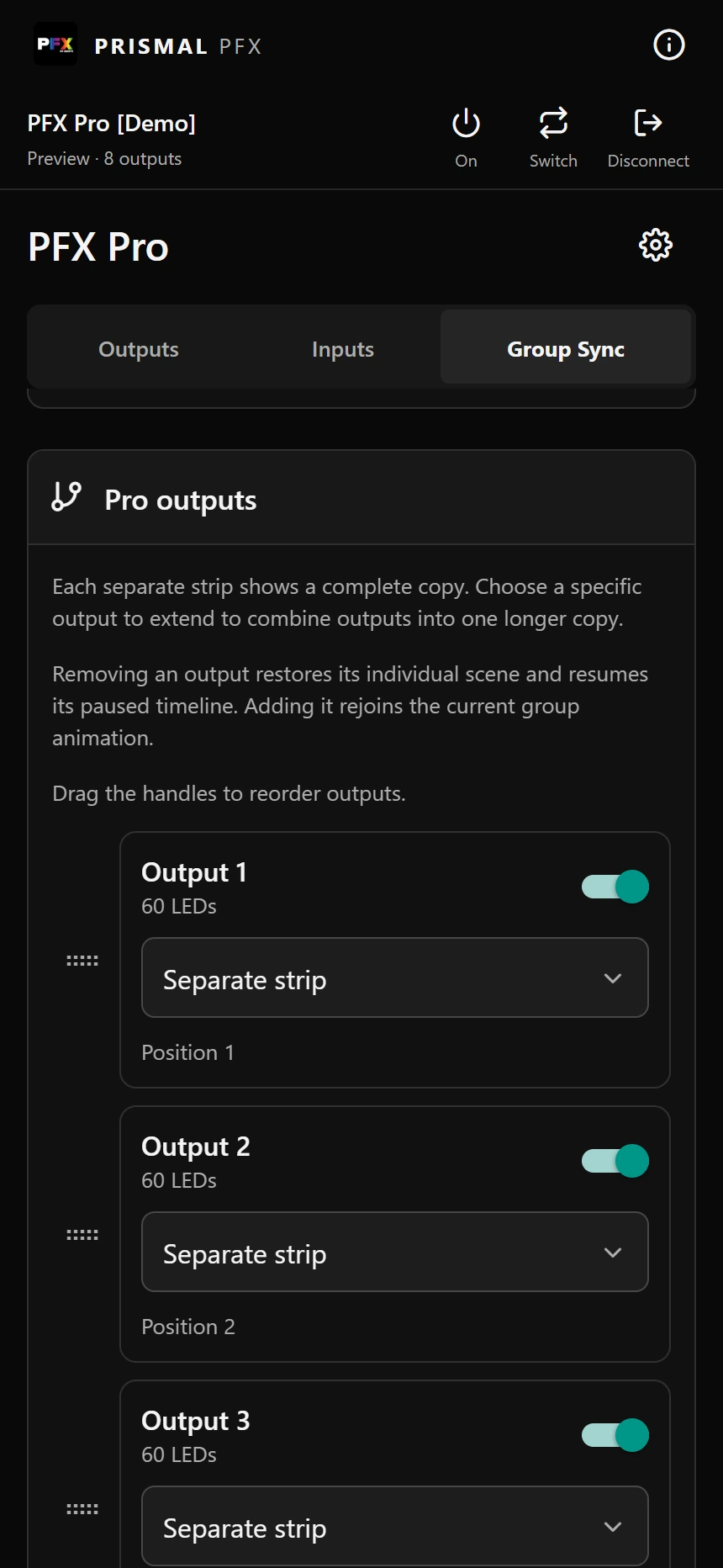
On a PFX Pro controller, open GroupSync → Pro outputs to choose which strips take part. You can leave other outputs showing their individual lighting.
- Use each output's switch to include it in or remove it from GroupSync.
- Drag the handles to arrange the included outputs in the order you want.
- With Same animation, keep Separate strip for a complete copy on that output. Choose Extend and another output if you want those strips to act as one longer strip.
With Continuous strip, the included outputs play in their listed order. Removing an output restores its individual lighting; including it again brings it back into the group.
See the PFX Pro app guide for the rest of the controller's output and input controls.
Leave, remove, or disband a group
- Leave on one controller: connect to that follower, open Group Sync, tap Leave group, and confirm. The other controllers remain in the group.
- Remove a follower from the master: open Controller chain, tap Remove beside that controller, and confirm.
- End the whole group: connect to the master, tap Disband group, and confirm. The followers return to Standalone.
Disconnecting the app is separate from leaving the group. Use Leave group or Disband group when you want to change group membership.
Help with common issues
- I cannot find the group.
- Keep the master powered and nearby. Connect to the controller you want to add, check that it shows Standalone, and tap Scan nearby again. Check for requested firmware updates on both controllers.
- The password is rejected.
- Use the group's current join password. It may differ from the password used to connect to an individual controller. Ask the group owner to check or change it from the master.
- The group says Full.
- A group supports one master and nine followers. Remove a follower you no longer need before adding another.
- One controller is not following the lights.
- Check its power and connection status in the master's Controller chain, move it closer to the others, and wait for it to reconnect. On PFX Pro, check that the intended output is enabled and included in Group Sync.
- The animation moves across the cars in the wrong order.
- Choose Continuous strip on the master, then use the arrows in Controller chain to match the car order. Check Pro outputs order too if the group includes a PFX Pro.
- I want to change the lighting but do not see the group controls.
- Reconnect the app to the group's master. If someone promoted a different controller, use that new master.
- One strip shows the wrong colors or has missing pixels.
- Check that strip's LED settings using the LED troubleshooting guide.